How to Add Links to Your YouTube Channel

To add links to your YouTube channel, sign in to YouTube Studio on a computer, select Customization, then Profile. Under Links, click Add link, enter a title and the full URL, and click Publish. You can show up to 14 links. The first one appears in your channel header near the Subscribe button, and the rest appear when viewers click to see more links.
Disclosure: Liink publishes this guide and makes a link-in-bio page builder. Liink is not affiliated with YouTube or Google. The YouTube Help Center pages listed at the end were checked in October 2026. YouTube can rename menus or change features, so treat your saved channel page as the final check.
Add links in YouTube Studio
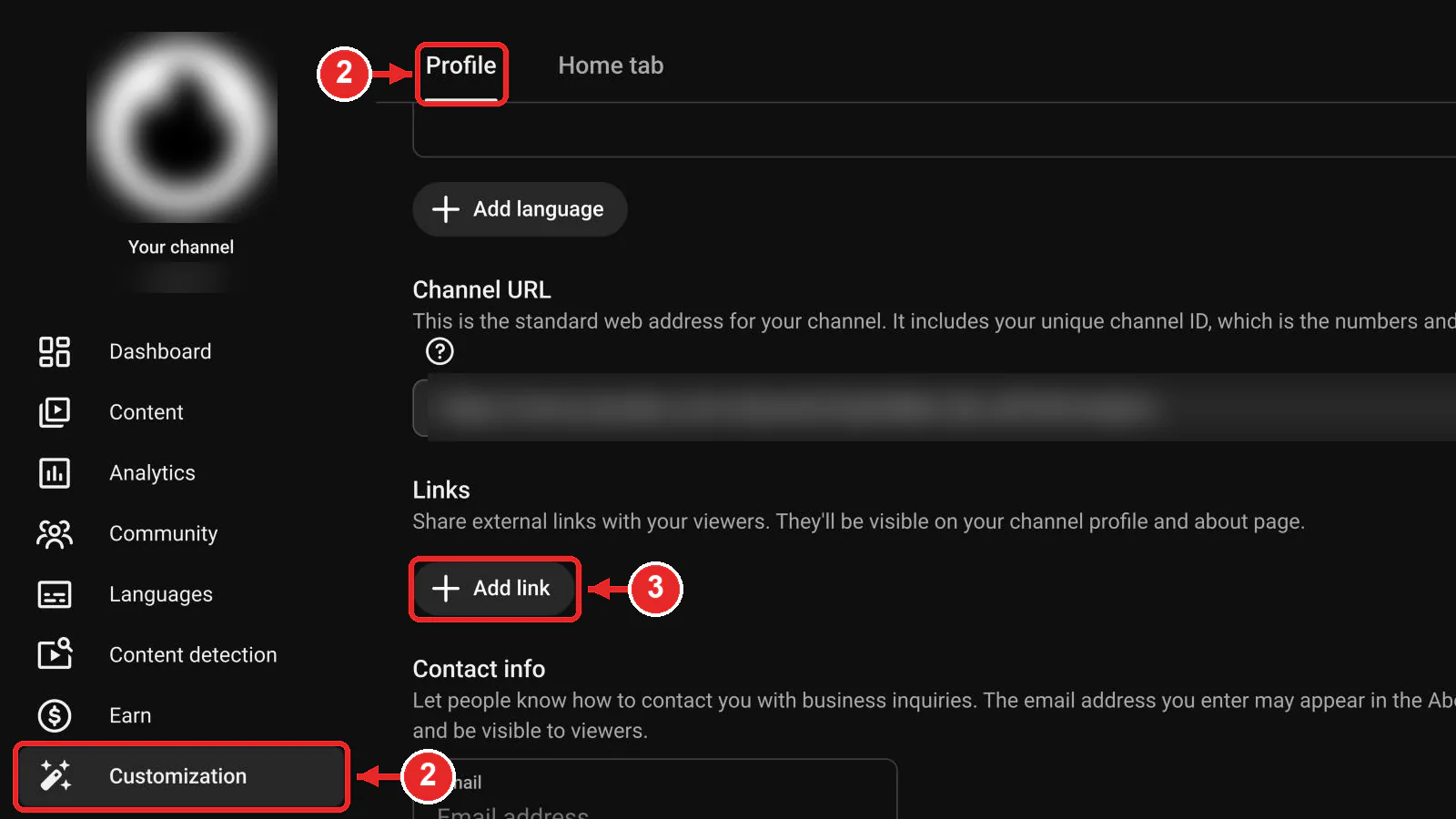
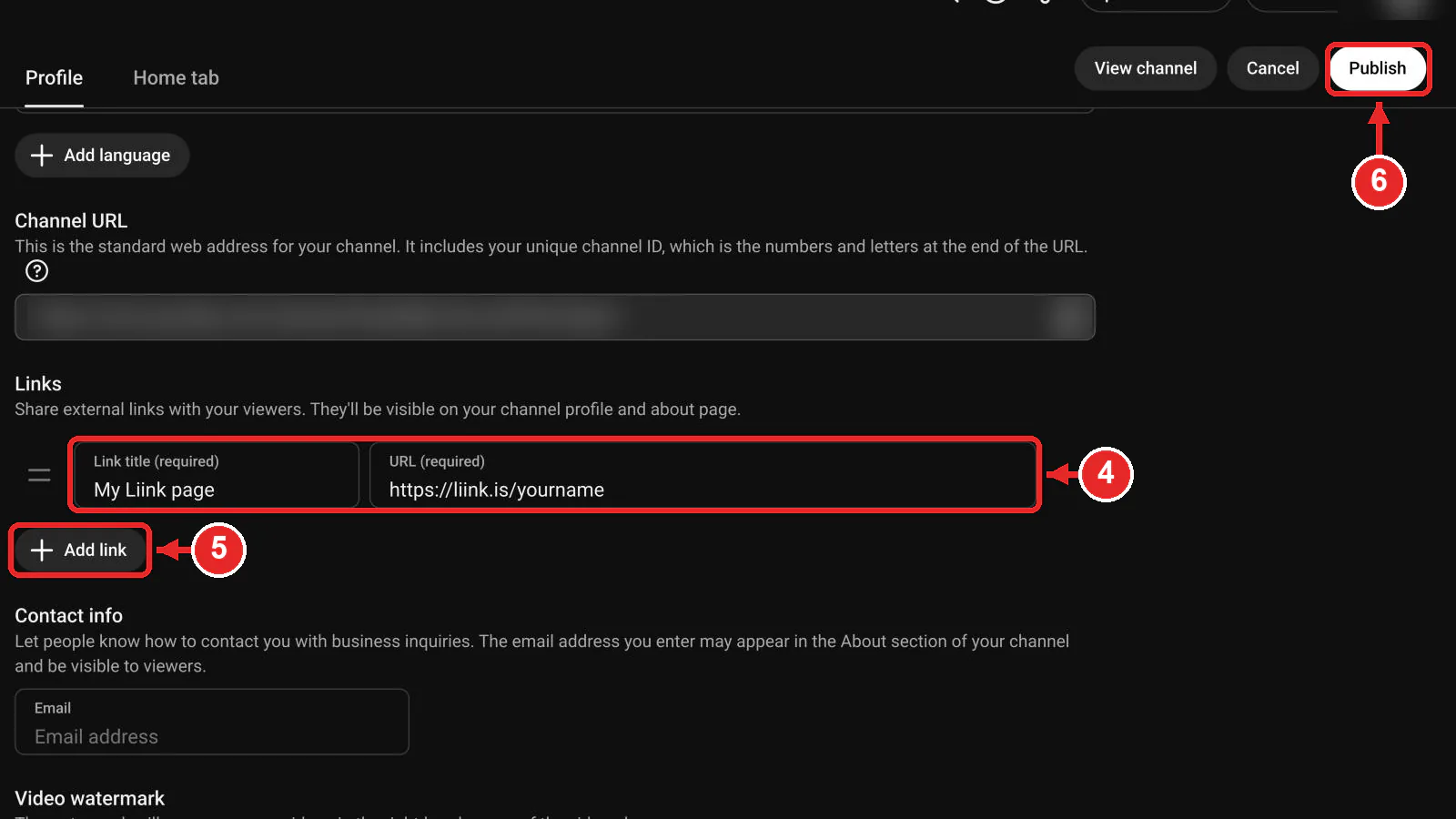
YouTube keeps channel links on the Profile tab of Customization in YouTube Studio. The same tab holds your channel name, handle, description, and contact email.
Write titles that say what viewers get, such as Shop, Newsletter, Podcast, or Book a call. A vague title like Click here gives people no reason to tap. Every destination must also follow YouTube's External links policy. Links to malware, phishing, pornography, or other content that breaks YouTube's Community Guidelines are not allowed on your channel, in videos, or in comments.
Add links from the YouTube mobile app
On a phone or tablet, use the YouTube Studio app. YouTube's Help Center gives the channel-link steps for the Studio app on Android, iPhone, and iPad. It does not list link steps for the main YouTube app, which you can still use to edit your channel name, handle, and description.
If you can't find Links in the app you're using, switch to YouTube Studio on a computer. Both routes save the same links to your channel profile.
Choose the link that shows on your channel page
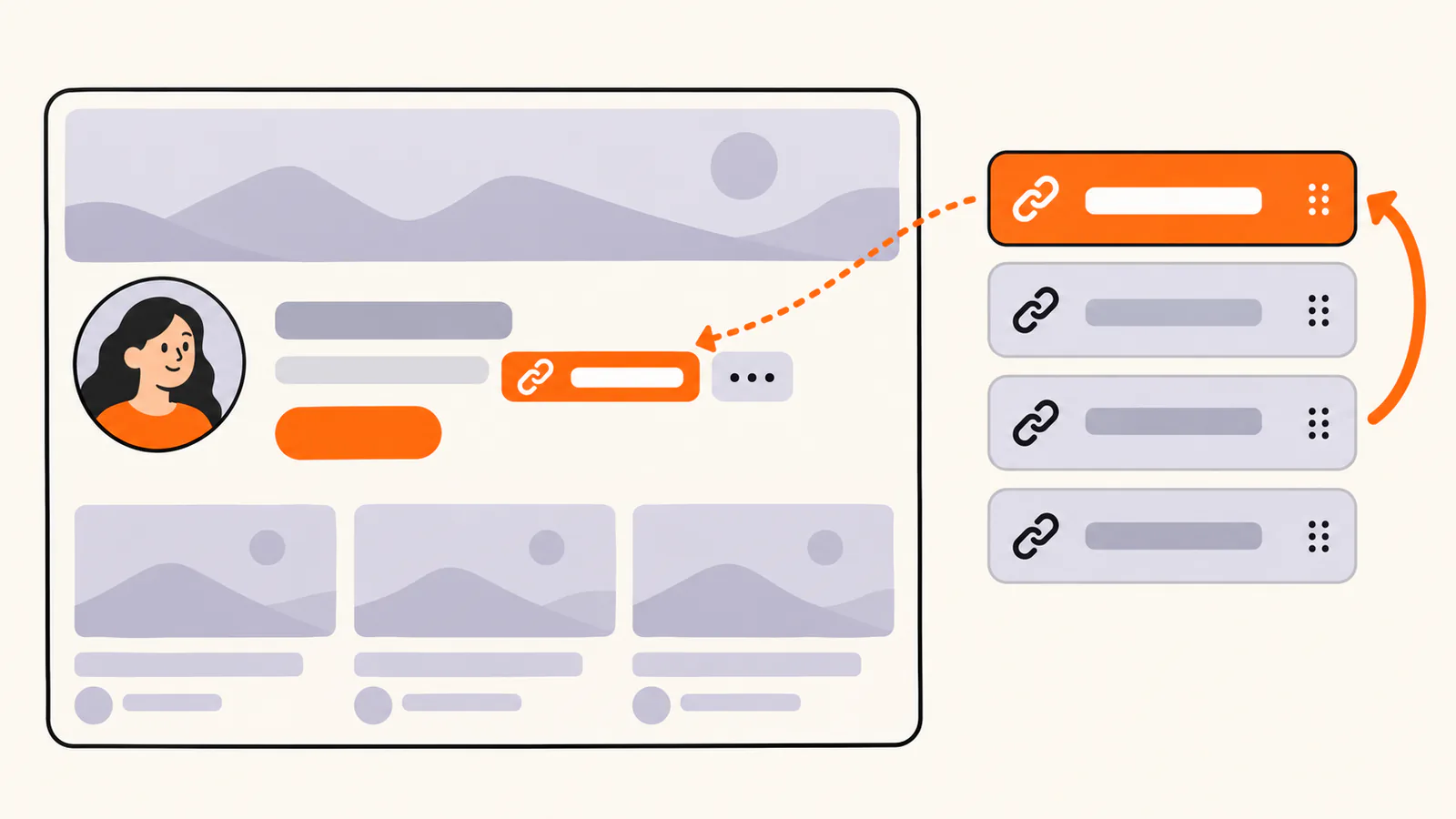
Your first link matters most. YouTube shows it prominently in the profile section of your channel header, near the Subscribe button. The other links stay out of sight until a viewer clicks to see more links. Put the destination you mention most in your videos first.
After you publish, open your channel page on a computer and on a phone, ideally while signed out. Check that the right link is first. If it isn't, go back to Links in YouTube Studio, make your priority link the first entry, and publish again.
Where YouTube shows your channel links
Channel links live on your channel profile. YouTube says you can showcase up to 14 links on your channel Home tab: the first one in the header, the rest in the expanded list. Your channel description also appears in the channel header, but the Links section is where YouTube tells creators to add channel links.
Links in video descriptions and comments
YouTube lists URLs in long-form video descriptions and comments as clickable, but only once your channel has access to advanced features. Adding a Related Video to a Short is an advanced feature too. To get advanced features, YouTube asks for phone verification plus either enough channel history or ID or video verification. Most active channels already have enough history. ID and video verification aren't available to every creator, and only the primary channel owner can verify.
Check your access in YouTube Studio:
Shorts work differently. URLs in Shorts descriptions and Shorts comments are not clickable, so send Shorts viewers to your channel page, where your profile links are, or add a Related Video that points to a longer video.
Why your YouTube links are not clickable
Also check the URL itself. Paste the full address, including https://, open it in a private window, and make sure the page loads on a phone. A broken or private destination looks like a broken YouTube link to your viewers.
Use one link page for everything else
Fourteen links is plenty, but only the first one is visible in your channel header. If you need to send people to several places, make your first link a single page that lists them all. That's what a link in bio means on other platforms, and it works the same way on YouTube.
Keep that page short. Put the action from your latest videos at the top, use clear labels, and remove expired offers. Our guide to building a social media landing page covers the layout in more detail.
Liink is one way to build it. The Free plan costs $0 and includes 1 public page, unlimited links, QR code sharing, and a liink.is/yourname address. Pro costs $7.99 a month or $79.90 a year and adds up to 5 public pages, custom domains, detailed analytics, and the option to remove Liink branding. Liink doesn't change YouTube's rules and can't guarantee clicks or subscribers.
Create a free Liink page, add it as your first YouTube channel link, and test it on a phone before you mention it in a video.
Using the same page on Instagram? Follow the Instagram bio-link guide for the current steps.
On TikTok, check the TikTok bio-link guide first, because the website field depends on account eligibility.
Frequently asked questions
How many links can you add to a YouTube channel?
You can add up to 14 channel links. YouTube features the first one in your channel header near the Subscribe button and shows the rest when viewers click to see more links.
Can you add links to your YouTube channel on mobile?
Yes, with the YouTube Studio app. Tap your profile picture, tap Edit next to your channel description, tap Edit under Links, then tap Add. YouTube's help page doesn't list link steps for the main YouTube app.
Which link shows on my YouTube channel page?
Your first link. YouTube displays it prominently in the profile section near the Subscribe button, so put your most important destination first.
Do I need to verify my channel to add links?
Not for channel links. YouTube's channel-link instructions list no verification step, only its External links policy. Verification matters for clickable links in long-form video descriptions, which need advanced features.
Why aren't the links in my Shorts description clickable?
YouTube makes URLs in Shorts descriptions and Shorts comments non-clickable to reduce spam and scams. Point Shorts viewers to your channel links instead.
Can I add an email address to my YouTube channel?
Yes. In YouTube Studio, select Customization, then Profile, and enter your email under Contact info. YouTube describes it as a way for people to reach you with business questions.
Official sources checked
Manage your YouTube channel's profile — YouTube Studio and Studio app steps for links, the 14-link limit, first-link placement, and contact info; checked October 2026.
Sharing links with your audiences — which link locations are clickable, including Shorts descriptions and comments; checked October 2026.
Channel customization — the Profile tab for channel name, handle, description, and site links; checked October 2026.
Learn about feature access for YouTube Creators — advanced features, including clickable links in long-form descriptions and Related Videos on Shorts, and the Feature eligibility path; checked October 2026.
Get access to intermediate and advanced features — phone, ID, and video verification, the primary-owner rule, and the advanced-features error message; checked October 2026.
YouTube External links policy — link destinations that are not allowed and when YouTube may remove a link; checked October 2026.